Layer 5 of 7 — you are here
Day Five · Companion to Chapter 8
Time Boundaries
Layers 1–4 governed what. Today governs when. Two different tools do two different jobs, and the fortress needs both:
Network windows (house-wide)
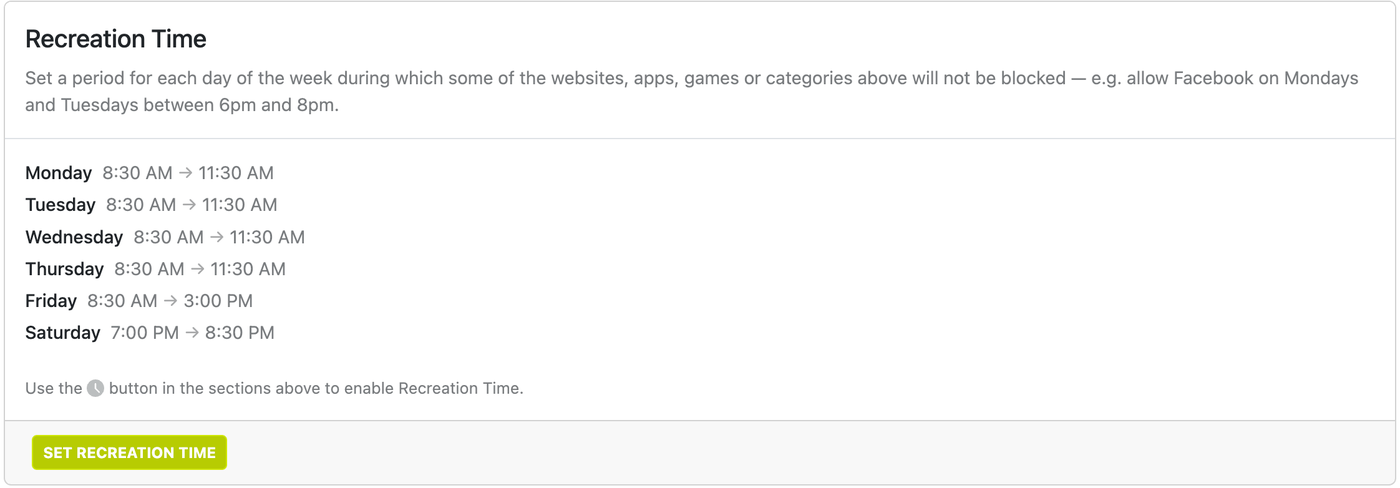
In NextDNS, scheduling lives in the Parental Control tab: each blocked category and each listed service can carry a schedule — NextDNS calls the allowed hours "Recreation Time." Outside the window, the category is blocked for every device on the network at once. One known limit: it's a single window per day of the week — no split windows (e.g., before school AND after dinner).
- NextDNS dashboard → Parental Control → add the services/categories you want time-boxed (Gaming, Social Networks, Video Streaming are the usual suspects).
- Set each one's Recreation Time — e.g., weekdays 4pm–8pm, weekends 9am–8:30pm. Outside those hours the category simply doesn't resolve.
- Remember what this covers: everything on your Wi-Fi — the smart TV, the console, the friend's phone. And remember what it doesn't: cellular (the traveling wall from Layer 3 carries your config, including schedules, off-network).
Device budgets (per-kid)
Apple Screen Time
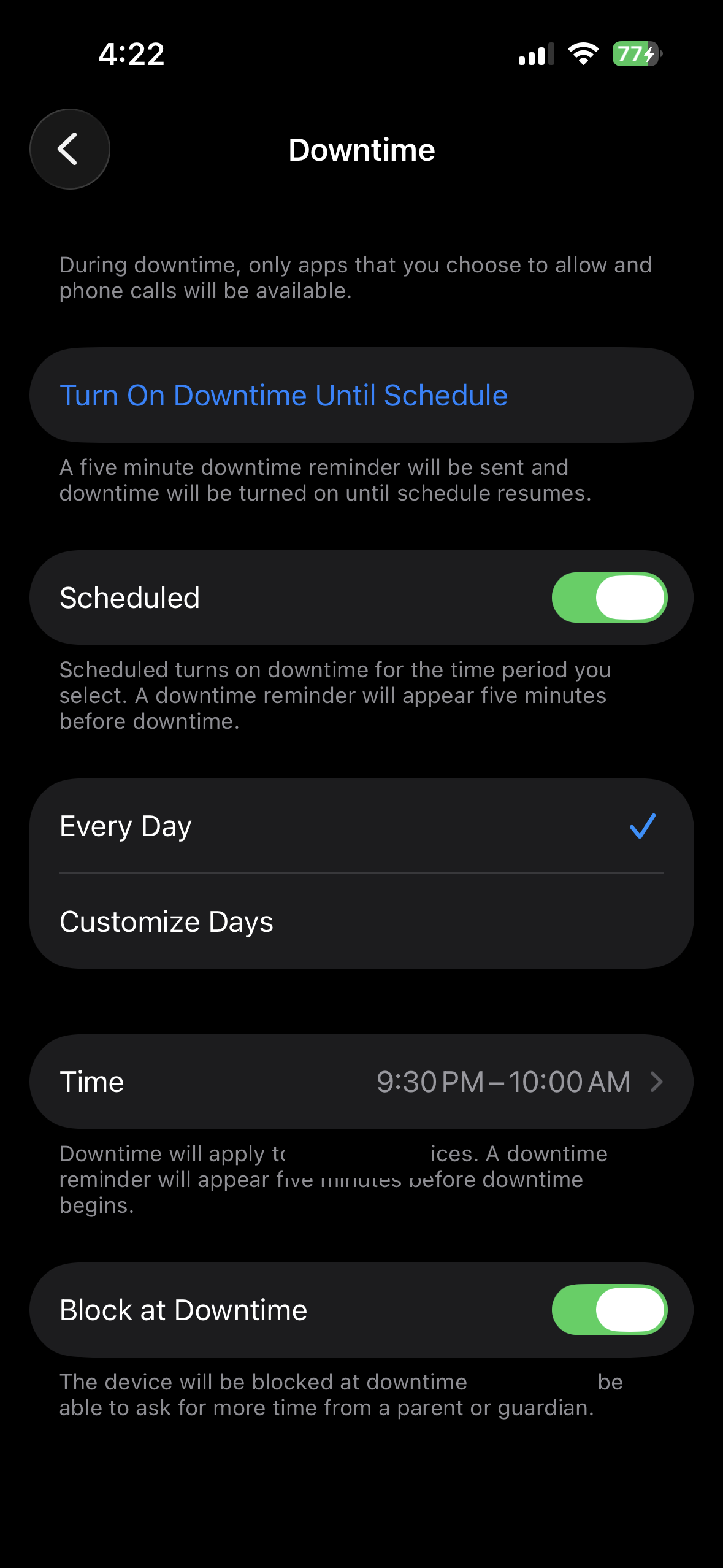
- Settings → Screen Time → [child] → Downtime: the device-level bedtime. During Downtime only parent-approved apps and calls work. Set a schedule per day of week.
- App Limits: per-app or per-category daily budgets (e.g., 45 min/day for a game category). Kids can request more time; requests land on the parent phone.
- Always Allowed: curate the short list that survives Downtime — calls, maps, music if you choose.
Google Family Link
- Family Link → [child] → Screen time → Time limits → Daily limit: the total-screen-time budget per day (with a weekly schedule option).
- Downtime (Screen time → Schedules): the schedule that locks the device overnight. There's also a newer School time schedule with breaks and always-allowed apps, if that fits your kid.
- App limits: per-app budgets from the app list on the child's controls page (system apps can't be limited).
The overlap checklist
Windows and budgets fail at their seams. Walk this list once tonight:
- Downtime overlaps the window edges. If the network gaming window closes at 8:30 and device Downtime starts at 9:00, you've built a half-hour of cellular-and-offline-games loophole. Device Downtime should start at or before the network window's close.
- No seams between weekday and weekend rules. Check Friday night and Sunday night specifically — that's where mismatched schedules leak.
- Lock date & time settings. The oldest trick in the book: change the device clock, reopen the window. On iOS, setting a Screen Time passcode forces Date & Time to "Set Automatically" and greys it out — that's the lock. On Family Link, the clock can only be changed when screen-time limits are off, unless a parent explicitly enables "Edit date & time" for that device (don't). Verify on the actual device either way.
- Offline games don't care about DNS. Windows govern the internet; a downloaded game plays fine at 2am unless a device budget says otherwise. Budgets close what windows can't see.
The rest day
The book makes the case; here's the mechanism. In your scheduler, a rest day is one checkbox: in NextDNS Recreation Time, simply leave the chosen day's window empty (or set it to none) for the recreational categories — one day a week where the recreational internet doesn't exist in your house. Same move in Screen Time: a day-specific Downtime schedule that runs longer. Whichever day fits your family's rhythm — the point is that it's structural, not negotiated weekly.
Done when
- Recreational categories carry network windows, house-wide.
- Every kid's device has Downtime and app budgets that overlap the windows with no seams.
- Date & time settings are locked.
- The rest day exists in the scheduler, not just in intention.